
CMS GUIDE
Table of Contents
Default Styles in WYSIWYG editor
This is default copy text. Lorem ipsum dolor sit amet, consectetur adipiscing elit, sed do eiusmod tempor incididunt ut labore et dolore magna aliqua. Ut enim ad minim veniam, quis nostrud exercitation ullamco laboris nisi ut aliquip ex ea commodo consequat.
A default anchor link will be styled like this.
- Bulleted list item 1
- Bulleted list item 2
- Bulleted list item 3
- Bulleted list item 4
- Numbered list item
- Numbered list item
- Numbered list item
- Numbered list item
Style Custom Classes
The styles below can be used in HTML modules and can be selected from the Style dropdown in the WYSIWYG editor. Once a style is applied to an element it will be displayed as below.
Style - "Heading - .heading-hero" : Only use in Hero Banner modules.
Hero banner heading with color span .heading-hero
Style - "Heading - .heading-1" : can be applied to heading elements - h1, h2, h3 etc.
Heading One .heading-1
Style - "Heading - .heading-2" : can be applied to heading elements - h1, h2, h3 etc.
Heading Two .heading-2
Style - "Heading - .heading-3" : can be applied to heading elements - h1, h2, h3 etc.
Heading Three .heading-3
Style - "Text - .text-centered" : can be applied to text elements - p, a, li, h1, h2, h3 etc.
Centered Text class which can be applied to any heading or text .text-centered
Style - "Text - .text-bold" : can be applied to text elements - p, a, li, h1, h2, h3 etc.
Bold text .text-bold
Style - "Link - .arrow-link" : can be applied to anchor links.
Style - "Button - .primary-button" : can be applied to anchor links.
Style - "Button - .secondary-button" : can be applied to anchor links.
Style - "Button - .tertiary-button" : can be applied to anchor links.
Style - "Button - .dark-bkgd-button" : can be applied to anchor links on dark backgrounds.
Button on dark background:
.dark-bkgd-buttonPage Templates
Working With Custom HTML Modules' Content Editors (WYSIWYG)
How do I replace placeholder ("lorem ipsum") or unwanted text content?
The content editor can be finicky. To replace placeholder or unwanted text, we recommend that you first click the “BLOCKS” button in the toolbar to reveal outlines surrounding block-level elements. Then, select the text you wish to replace and type in your desired text. Or, you can place your cursor at the end of the text you want to replace, add your desired text, and then select and delete the placeholder text preceding it. We do NOT recommend selecting all placeholder text in the editor and deleting it before you add your desired content. As a result you may accidentally erase necessary markup that the content depends on. It is always best to edit text elements one at a time rather than deleting everything you don’t want from the start.
Can I copy/paste from other sources?
Be very careful when copy/pasting text content from other sources into a Custom HTML module's content editor. When copying from an external document, take steps to ensure the text you are copying is plain text (as opposed to rich text.) When copying from a web page, make sure you are ONLY including text and not actual HTML tags (<p>, <br>, etc.) as this could result in unintended styling/format inconsistencies.
How do I change the appearance of text content (color, font size, etc)?
The “STYLE” dropdown in the toolbar can be used to edit the styling/appearance of content. Keep in mind that when you add a style from the dropdown, it does not overwrite other styles previously applied to the element. This allows greater flexibility in cases where you may need more than one syle applied, but you will need to remember to uncheck undesired styles after applying them.
Please refer to Style Management for examples of classes/styles you may apply.
Keep in mind that changing the appearance or styles of text should be done SPARINGLY - for the sake of consistency across pages, it is best to stick with the module's default styling whenever possible.
How do I add/edit a link?
The "insert/edit link" button in the toolbar is used to create and modify links:
- To create a new link, type your desired link text within the content editor, select it, and then click the "insert/edit link" button. This may be tricky if you're creating a new link next to an already-existing link. To do this, place your cursor at the end of the existing link's text and then press the right arrow key, so your cursor is outside the existing link. Then, type the new link's text, select it and click the "insert/edit link" button.
- To modify an existing link, click into the middle of the link text within the content editor, then click the "insert/edit link" button.
Note: Using proper link text is very important. For more details, see "Does it matter what I use for link text?" in General Tips/Advice for CMS Users.
How do I add/edit an image?
The "asset picker" button in the toolbar allows you to add images into the content editor. To modify an existing asset, click the asset and then click the "asset picker" button. Not all custom HTML modules were made with the intent to have an image placed in them. (Tip: If your default placeholder content did not contain an image, you should avoid adding one with this tool.)
Note: If you're including an image in a Custom HTML module, remember to consider the image alt text (which is editable through the "asset picker" button), and include a value when necessary. For more details, see "Do I need to update/include alt text for every image?" in General Tips/Advice for CMS Users.
How do I add a code snippet?
The "insert code snippet" button in the toolbar adds pre-made snippets of code into the content editor. Note that code snippets are primarily (but not always) used as a way to revert either the entire content of a Custom HTML Module to its default state, or to revert a part of its content to its original state. For example, if you accidentally delete the quote in one of the Custom HTML Modules in a "Two Testimonials" section, you can use a code snippet to add a default quote which you can then edit as needed. In most cases you will not need to use code snippets unless you're attempting to "fix" a module (i.e. bring back original content which was since removed.)
IMPORTANT: Be very careful to only use code snippets that are intended for use in the specific module you’re editing. In most cases the name of the code snippet should partially or exactly match the name of the module you’re editing. A list of all code snippets that are intended for use within a module will appear in that module's parent section's documentation in the Section Guide. Do not use a code snippet when the section name in the title of the code snippet does not match the section you are currently editing. For example, if you're editing a section created from a section template labeled as "Intro Copy" you should only be using code snippets whose titles include "Intro Copy."
I've messed up my edits and would like to revert back to the original "lorem ipsum" placeholder content. Is there a way to do that?
Check to see if the module you're editing has a default code snippet available. The name of the snippet should match the name of your module (minus the given section name prefix.) If so, you may delete the entire content and then insert the appropriate code snippet. Some modules don't have default code snippets available, but they may have other snippets which could replace specific portions of your content.
Does it matter which levels of headings (H1, H2, etc) I use in my content?
Yes. For SEO and accessibility purposes, it is important that your page’s heading structure is hierarchical. This means that your page’s top heading needs to be an h1 heading, such as the headline in an "Intro Copy - Content" module.
You should also be careful to avoid skipping heading levels (i.e. using an h3 heading before an h2 has been used, etc.) If you need to change the appearance of a heading without changing the level, apply one of the heading classes from the content editor's "STYLE" dropdown (see Style Management for a list of these heading style classes.)
General Tips/Advice for CMS Users
How can I ensure that my content will be accessible to all users?
Be sure to follow all recommendations and instructions given in this guide, particularly the recommendations involving link text, image alt text, and heading levels. To learn more about accessibility, please see Accessibility for Radancy CMS Publishers.
Can I change the layout assignment of a page/section/module?
You should never change a layout assignment unless specifically instructed to do so in the relevant section's documentation found in the Section Guide. This will almost always lead to unintended results.
Can I add a module to a section?
You should never add a module to a section unless specifically instructed to do so in the relevant section's documentation found in the Section Guide. This will almost always lead to unintended results.
When I'm adding a section from the "Add New" section menu to a page, what should I name my new section?
To avoid future confusion, especially for other CMS users who may need to edit/update the content you're creating, naming conventions should be consistent throughout the site. When creating a section that you anticipate will only be used on the page you're adding it to, we recommend the following naming convention: [Page Name OR Abbreviated Page Name] - [Section Template Name] [Number (only include if you anticipate other sections of the same template will be added to the same page.)] For example, "Benefits - Body Copy" or "DEI - Body Copy 1." If you anticipate that the section you're creating may be used on other pages as well, we suggest giving it a name that summarizes its purpose/intent rather than its content or context (which may change or be updated later on.) For example, "Human Resources Job List" or "Annual Job Fair CTA."
Note: While you CAN change a section's name after creating it, you will NOT be able to change the names of the modules included in the section (which will, by default, include the ORIGINAL section name.) So we recommend that you carefully choose a good name for each section you create.
Can I create a CMS page without using one of the CMS Page Templates?
Yes, but this is not recommended as creating a page without using a CMS Page Template will require you to select a page layout. To avoid selecting the incorrect layout, we recommend using one of the available CMS Page Templates, in all cases.
If you are looking to create a "blank" page, see the next question.
How do I create a "blank" page?
To create a blank page, click the "Add Page" button in the "CMS Primary Theme" theme and select the "CMS Template 0 -- Blank" page template.
Which theme should my page be assigned to?
All CMS pages should be assigned to the "CMS Primary Theme" theme.
DO NOT assign any CMS pages to the "Default Theme (GST)" theme. This theme is enabled for CMS due to system requirements, but it is NOT intended to be used as a theme for CMS Pages.
Do I need to update/include alt text for every image?
Every time you add or replace an image file, you should consider whether to include alt text for the image. In some cases, such as when the image is considered descriptive and not essential to the page content, alt text may be left blank. For more details, please see this alt text decision tree. Not only are these considerations essential in making the site accessible to non-visual users, it will also improve SEO.
Does it matter what I use for link text?
It matters a lot. To make links accessible to all users, use link text that would make sense to users if taken out of the surrounding context. For example, "learn more about our benefits" is acceptable, whereas "click here" or "learn more" are not. This is important in all situations, but be particularly careful when adding/editing links inside Custom HTML modules, as you'll have full control over what text is included in a link.
How do I update/add a hero banner to my page?
Go to your page settings in CMS admin and find the "Banner" settings. Upload your already-prepared hero banner image to the "Mobile Banner" field. Then, enter your desired text into the "Headline" and "Short Description" fields. The "Short Description" field text is used as the larger text in the banner (it should be some sort of slogan or phase of interest to visitors, i.e. "Ready to Thrive"), while the "Headline" field text is used for the smaller heading below (it should be a standard title for the page, i.e. "Benefits.") Be careful to make sure your text is not overly long, in either case.
Additional Notes
How can I add to or update the notes to this section?
Find this section (title: "CMS Guide - Notes") in your section list and edit its "CMS Guide - Notes-Intro Copy - Content" module to add as many notes as you'd like right here. Be careful to not delete any of the content above or below your notes!
Add your notes below:
Section Guide
Before using a section from this guide, please read the corresponding documentation for that section. Documentation is found above each section in this guide, on a black background.
Note that section titles are color coded based on which menu they can be found in after clicking the "add section" button on any page:
Red - find this section in the "Use Existing" Menu.
Green - find this section in the "Add New" Menu.
Keep in mind that when you edit a section from the "Use Existing" Menu, you are editing every instance of that section. Sections added via the "Add New" Menu are safe to be edited freely, as a new instance of the section is created every time it's added to a page.
Section Name: Hero Banner
CMS Enabled? Yes
Code snippet: Hero Banner Copy

Lorem ipsum or sit consectur
Section Name: Full Width Copy
CMS Enabled? Yes
Code snippet: Copy block full width
Lorem ipsum dolor sit amet, consectetur adipiscing elit, sed do eiusmod tempor incididunt ut lab.
Section Name: Centered Copy with Images
CMS Enabled? Yes
Code snippet: Centered copy with images - Copy block


Lorem Ipsum, Dolor sit Amet. Consectetur tempo.
Lorem ipsum dolor sit amet, consectetur adipiscing elit, sed do eiusmod tempor incididunt ut labore et dolore magna aliqua. Ut enim ad minim veniam, quis nostrud exercitation ullamco laboris nisi ut aliquip ex ea commodo consequat. Duis aute irure dolor in reprehenderit in voluptate velit esse cillum dolore eu fugiat nulla pariatur excepteur sint. Occaecat cupidatat non proident, sunt in culpa qui officia deserunt mollit anim id est laborum.
Section Name: Offset Image Left Copy Right
CMS Enabled? Yes
Code snippet: Copy Block - One Column
Lorem ipsum dolor sit amet
Consectetur adipiscing elit, sed do eiusmod tempor incididunt ut labore et dolore magna aliqua. Ut enim ad minim veniam, quis nostrud exercitation ullamco laboris nisi ut aliquip ex ea commodo consequat. Duis aute irure dolor in reprehenderit in voluptate.
Learn MoreSection Name: Offset Image Right Copy Left
CMS Enabled? Yes
Code snippet: Copy Block - One Column
Lorem ipsum dolor sit amet
Consectetur adipiscing elit, sed do eiusmod tempor incididunt ut labore et dolore magna aliqua. Ut enim ad minim veniam, quis nostrud exercitation ullamco laboris nisi ut aliquip ex ea commodo consequat. Duis aute irure dolor in reprehenderit in voluptate.
Learn MoreSection Name: Image Left Copy Right
CMS Enabled? Yes
Code snippet: Image Left Copy Right - Copy Block

SED & adipiscing
Lorem ipsum dolor sit amet, consectetur adipiscing elit, sed do eiusmod tempor incididunt ut labore et dolore magna aliqua. Ut enim ad minim veniam, quis nostrud exercitation ullamco laboris nisi ut aliquip.
- Worem ARGs
- Dolor ARGs
- Consectetur ARGs
- Eiusmod ARGs
- MENA ARGs (tempordolore magna & aliqua)
- Augiat nulla pariatur ARGs
- Asse cillum
Section Name: Employee Quote
CMS Enabled? Yes
Code snippet: Employee Quote Copy

Lorem ipsum dolor sit amet, consectetur adipiscing elit, sed do eiusmod tempor incididunt ut labore et dolore magna aliqua. Ut enim ad minim veniam, quis nostrud exercitation ullamco laboris nisi ut aliquip ex ea commodo consequat. Duis aute irure dolor in reprehenderit volutate velit esse cillum dolore eu fugiat nulla pariatur.
Dolore Magnam
VP in R&D al quaer volupt
Section Name: Copy Left Graphic Right with Grey Bkgd
CMS Enabled? Yes
Code Snippet: Copy Left Graphic Right - Copy Block
Lorem ipsum dolor - sit amet consecteter adipiscing
Elit, sed do eiusmod tempor incididunt ut labore et dolore magna aliqua. Ut enim ad minim veniam, quis nostrud exercitation ullamco laboris nisi ut aliquip ex ea commodo consequat. Duis aute irure dolor in reprehenderit in voluptate velit esse cillum dolore eu fugiat nulla pariatur. Excepteur sint occaecat cupidatat non proident, sunt culp.

Section Name: Three Images Left Copy Right with Grey Bkgd
CMS Enabled? Yes
Code Snippet: Three Images Left Copy


Ipsam Voluptatem
Lorem ipsum dolor sit amet, consectetur adipiscing elit, sed do eiusmod tempor incididunt ut labore et dolore magna aliqua. Ut enim ad minim veniam, quis nostrud exercitation ullamco laboris nisi ut aliquip ex ea commodo consequat. Duis aute irure dolor in reprehenderit in voluptate velit esse cillum dolore eu fugiat nulla pariatur. Excepteur sint occae.
Nemo enim: Ipsam voluptatem quia voluptas sit aspernatur aut odit aut fugit, sed quia consequuntur magni dolores eos.
Ratione: Voluptatem sequi nesciunt. Neque porro quisquam est, qui dolorem ipsum quia dolor sit ametse.
Adipisci: Velit sed quia non numquam eius modi tempora incidunt ut labore et.
Consectetur: Adipisci velit, sed quia non numquam eius modi tempora incidunt ut labore et dolor.
Perspiciatis: Unde omnis iste natus error sit voluptatem accusantium doloremque.
Section Name: Homepage Hero Banner
CMS Enabled? Yes

Health is
our obsession.
Pets. People. Planet.
Section Name: Timeline Carousel
CMS Enabled? No

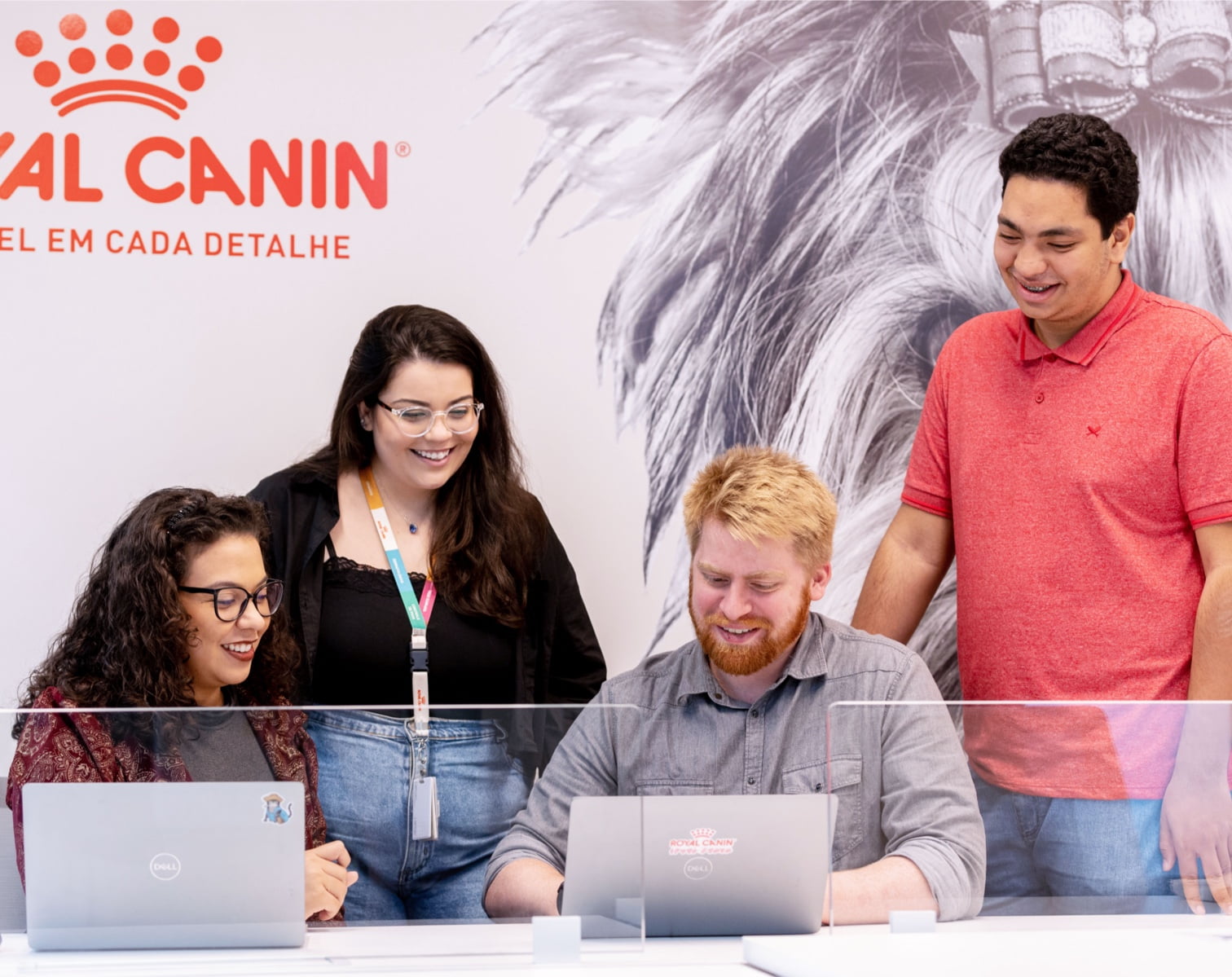
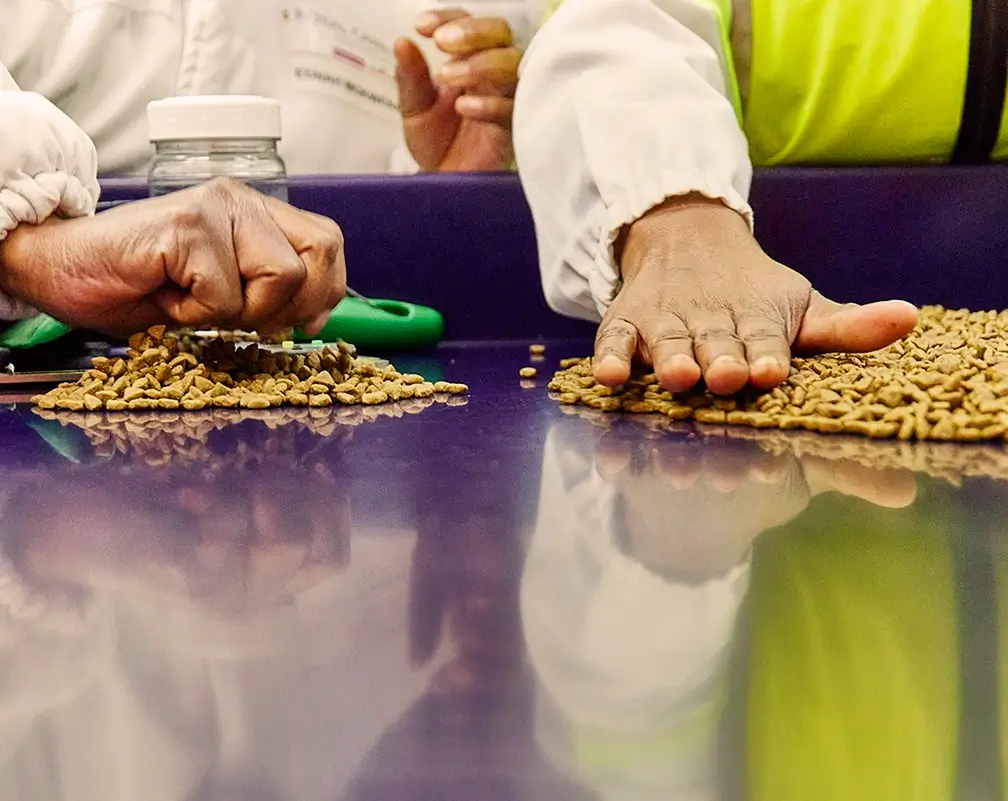




1968
Our passion for pet health through nutrition began with one man
Jean Cathary, a French vet practitioner who strongly believed that food could impact the health of animals, designs the "yellow soup" The ROYAL CANIN® brand is registered.
1974
International expansion
Our products are sold in eight countries in Europe.
1994
Pioneering cat nutrition
Launch of RCFI range, a triple revolution in cat food: premium, dry, specialized distribution.
2002
A new family: Mars
In 2002, Royal Canin proudly joins the MARS family of businesses, welcoming a complementary set of principles to the Royal Canin founding philosophies.
2014
Each dog is unique
Start of the individualization journey with the launch of GHA, a test that scans dogs' DNA, allowing veterinarians to create customized health plans that reflect each dog's individual genetic code.
2018
Opening of our 15th factory & extension of our Campus
Our Vision
Continuing beyond nutrition
More diagnostic tools and new distribution models to better serve the health of cats and dogs.
Section Name: Job List TabCordion
CMS Enabled? No
-
Finance Project & System Analyst
Athens, Greece, Bucharest, Romania, Budapest, Hungary, Ljubljana, Slovenia, Niepołomice, Poland, Prague, Czechia, Sofia, Bulgaria, Warsaw, Poland Digital Technologies Category: Digital Technologies -
Rayon Accountmanager Royal Canin
Veghel, Netherlands Sales Category: Sales -
Area Business Manager –Breeder and Rescue Channel
Castle Cary, United Kingdom Sales Category: Sales
Section Name: Heading with 3 Cols of Job Links
CMS Enabled? No
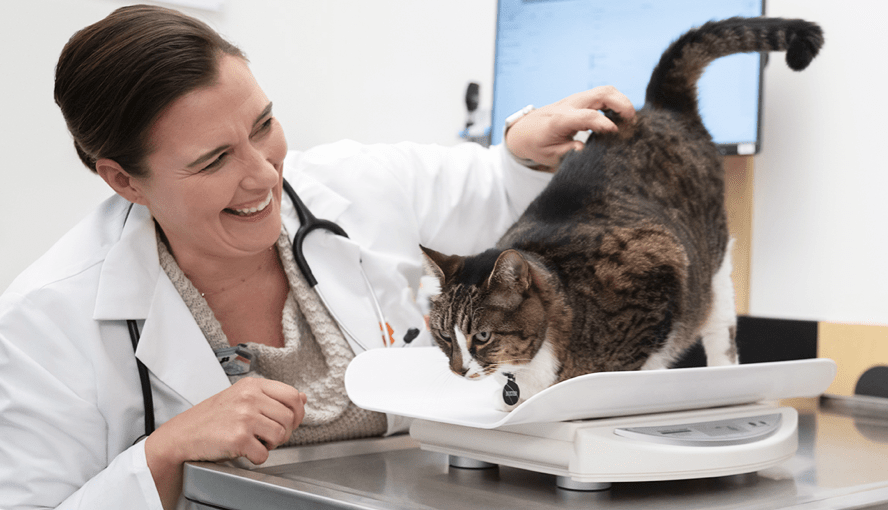
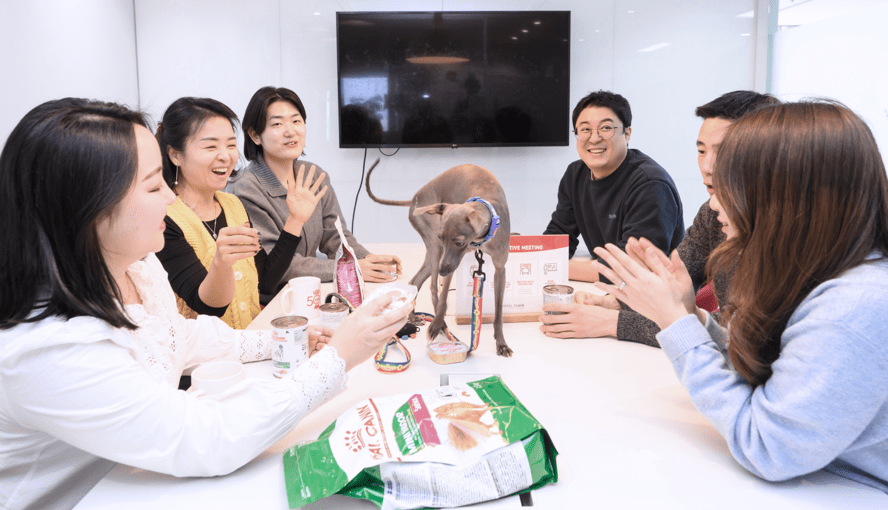
At Royal Canin, there are many ways you can connect Your Passion To Purpose



Section Name: Job Alerts
CMS Enabled? No
Section 1 - Icon Grid
CMS Enabled? Yes
Snippet: Section 1 - Icon
-

Heading
Proin congue, magna luctus fermentum mattis, dolor ipsum iaculis nunc.
-
Heading
Proin congue, magna luctus fermentum mattis, dolor ipsum iaculis nunc.
-
Heading
Proin congue, magna luctus fermentum mattis, dolor ipsum iaculis nunc.
-
Heading
Proin congue, magna luctus fermentum mattis, dolor ipsum iaculis nunc.
-
Heading
Proin congue, magna luctus fermentum mattis, dolor ipsum iaculis nunc.
-
Heading
Proin congue, magna luctus fermentum mattis, dolor ipsum iaculis nunc.
Section 2 - Related Content
CMS Enabled? Yes
Section 3 - Content Map
CMS Enabled? Yes
our locations
-
location 1
Lewisburg, Ohio
-
location 2
west manchester, Ohio
-
location 3
cedar springs, Ohio
-
location 4
Brookville, Ohio
Section 4 - Article
CMS Enabled? Yes
Snippet: Section 4 - Article - SideBar
lorem ipsum
Lorem ipsum dolor sit amet, consectetur adipiscing elit. Duis eu accumsan arcu. Sed sagittis velit vel nunc commodo, sit amet auctor eros rhoncus. Fusce vel rutrum nunc. Integer suscipit nulla sit amet lectus auctor, vel consequat sem iaculis. Phasellus vitae odio fermentum metus cursus aliquam at a ante. Morbi volutpat turpis est, sed mattis justo imperdiet at. Etiam gravida suscipit massa, ac porta diam sollicitudin sed. In elit justo, fringilla ut molestie viverra, laoreet et urna. Sed consequat dignissim odio, eget porttitor est feugiat et. Cras varius, augue ut volutpat congue, arcu ligula rutrum libero, ac placerat ante odio sed magna. Aliquam et lorem a lorem eleifend aliquam hendrerit eu tellus. Suspendisse erat massa, iaculis nec diam id, accumsan placerat nunc. Praesent metus turpis, consequat et turpis vel, pulvinar euismod eros. Orci varius natoque penatibus et magnis dis parturient montes, nascetur ridiculus mus. Donec eu egestas orci, at bibendum nulla.
Proin cursus aliquam nibh id ultrices. Fusce sit amet laoreet odio, a suscipit eros. Ut odio urna, iaculis sed libero eu, fermentum ultrices lectus. Curabitur at est at ex porta molestie. Aliquam urna libero, posuere quis metus sed, congue blandit odio. Suspendisse rutrum nisi at placerat hendrerit. Morbi cursus scelerisque lacus id tincidunt. Class aptent taciti sociosqu ad litora torquent per conubia nostra, per inceptos himenaeos. Duis ut consectetur ex. Vestibulum consectetur pellentesque porttitor. Nullam dignissim dui odio, non facilisis arcu rutrum sit amet. Proin malesuada lobortis nisl iaculis dapibus.
lorem ipsum
Quisque id augue vel metus viverra mollis vel id purus. Praesent maximus tristique risus. Proin congue, magna luctus fermentum mattis, dolor ipsum iaculis nunc, ut convallis dolor tellus sit amet sapien. Nam id justo augue. Nunc tincidunt pellentesque arcu eget efficitur. Sed ultricies tellus ante, eu vulputate libero condimentum eget. Maecenas imperdiet, libero ac pellentesque blandit, justo dui tincidunt neque, a consequat tortor risus sit amet ante. Aliquam posuere volutpat ultrices.
Praesent aliquet felis neque, vel volutpat velit placerat non. Duis bibendum ante vitae metus tristique, a commodo risus tempor. Vivamus viverra bibendum molestie. Duis tempus fermentum neque eget cursus. Aliquam pretium ultricies orci, et maximus dui molestie eu. Vivamus sit amet turpis sed nulla pretium placerat in quis massa. Nulla ligula massa, mollis at risus in, aliquet dignissim mauris. Ut porttitor arcu a mi finibus fringilla. Pellentesque sed mi eget lectus posuere rutrum nec scelerisque sapien. Nunc eget est in est feugiat rutrum. Sed aliquam purus risus, sed condimentum est euismod a. Aliquam et turpis tempor, volutpat elit at, venenatis sem. Pellentesque non arcu a nisl luctus tempor. Phasellus facilisis laoreet ante. Maecenas ornare iaculis egestas. Etiam eget aliquam est, sit amet interdum nisl.